How to Set Up Xampp
This guide will show you how to download and install Xampp on your Windows computer.
Step 1: Download Xampp
Head over to the official Xampp website:
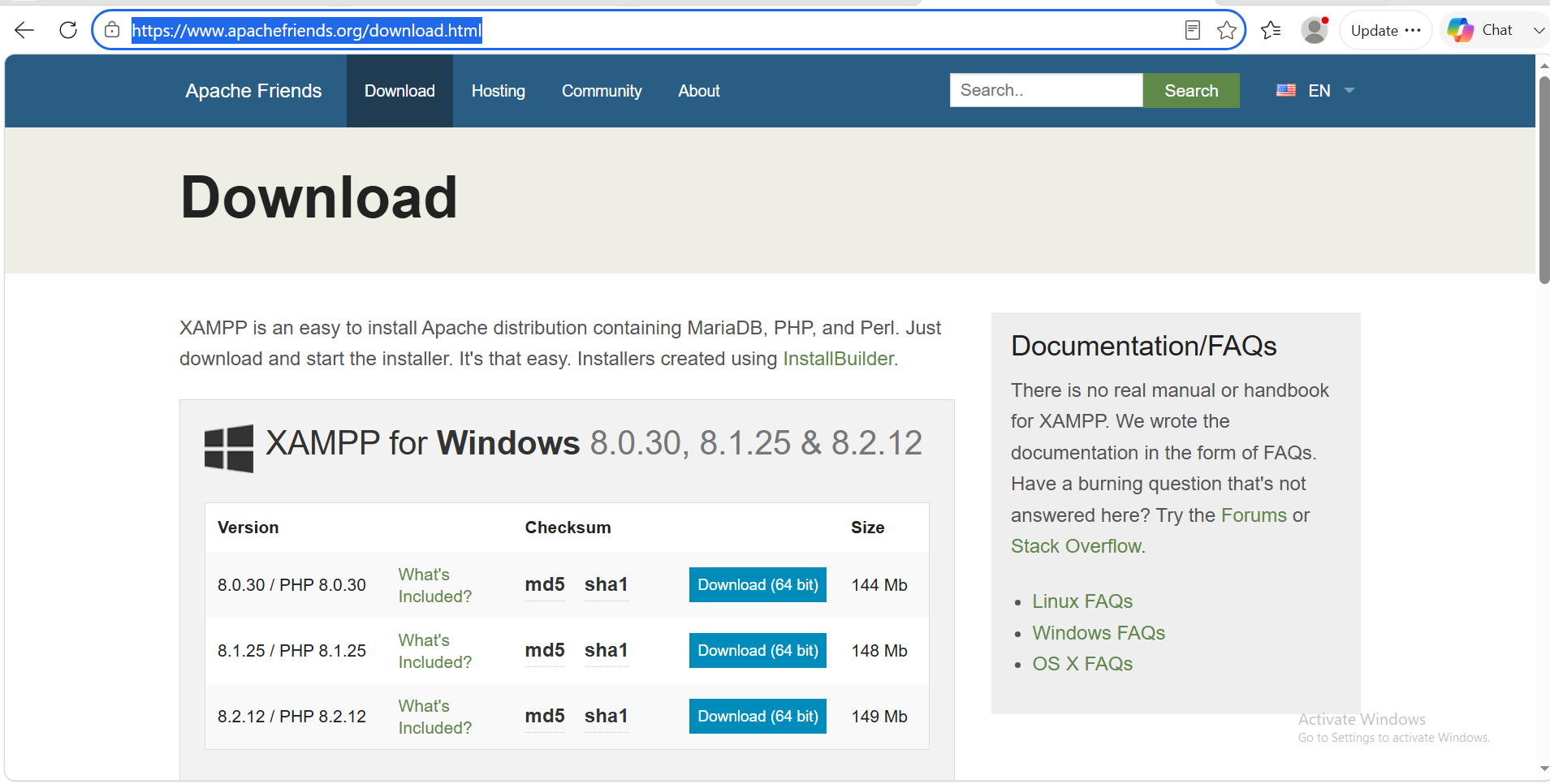
Step 2: Download Xampp 64 bit
On the download page, find Xampp for windows 8.0.30 and download the latest version available.
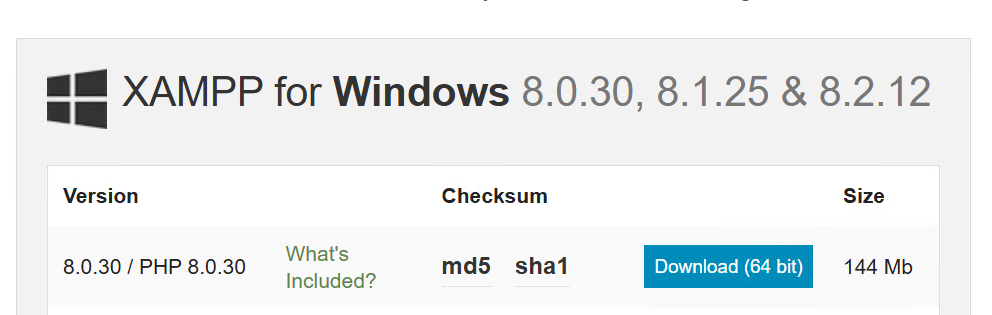
Step 3: Install Xampp
Once the download has finished, open your Downloads folder.
Double-click the Xampp installer you just downloaded to start the installation.
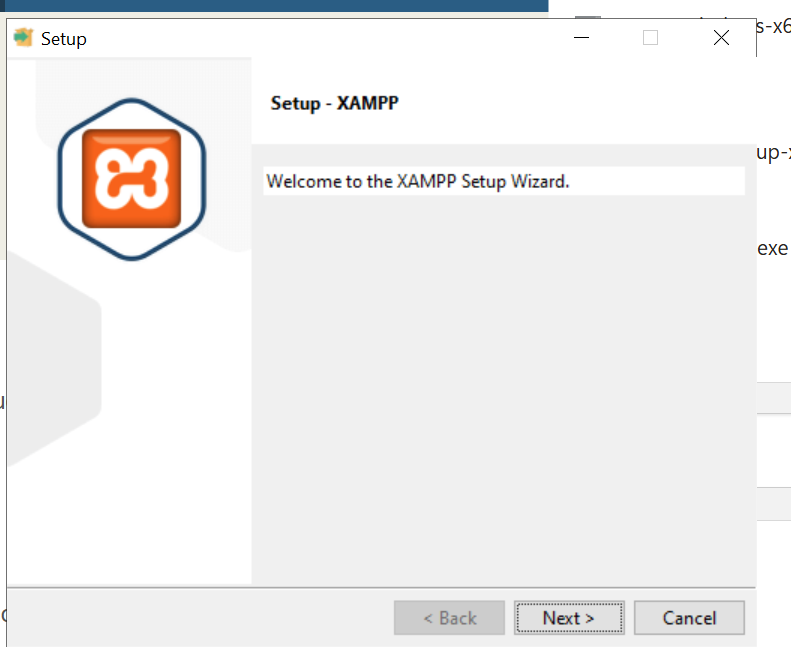
Click Next to begin installing Xampp.
Step 4: Select Components
After you click next, you will see the Xampp Components options.
Simply click NEXT.
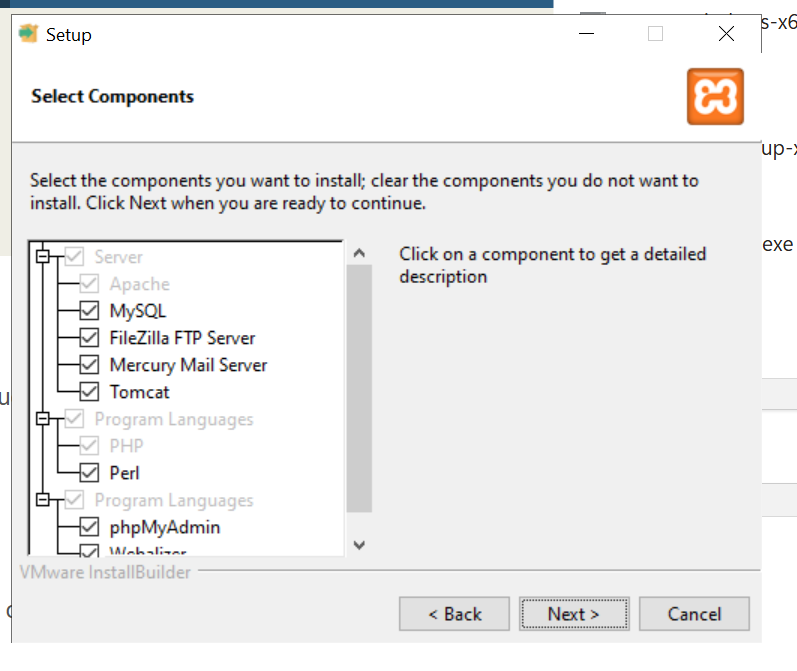
Then click Next again you can change installation path! But I would not.
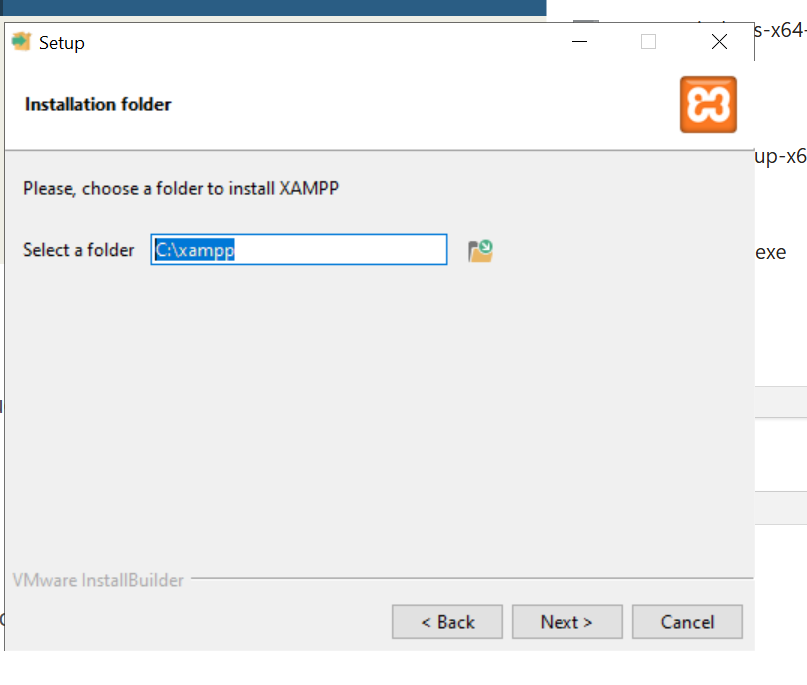
Click Next AGAIN!
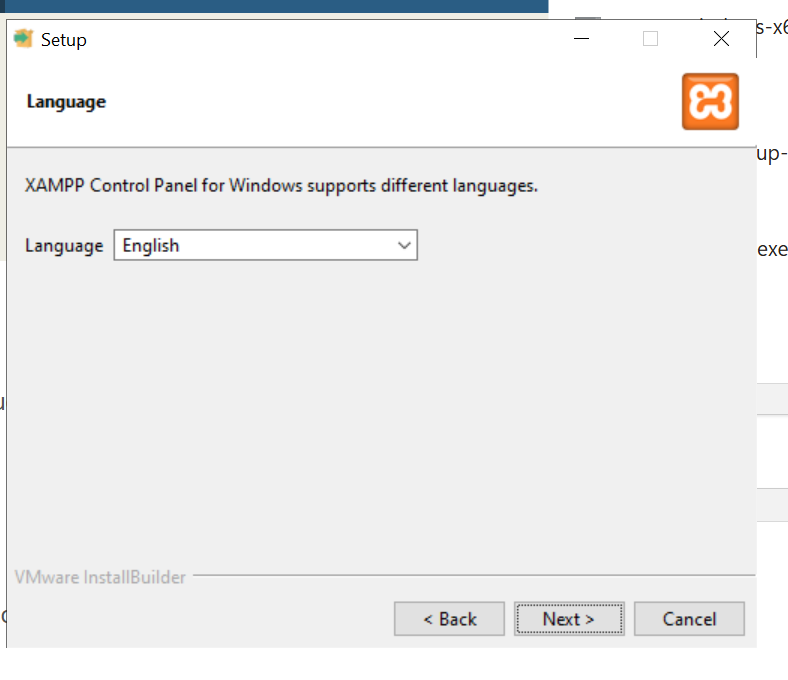
Then Next Again!
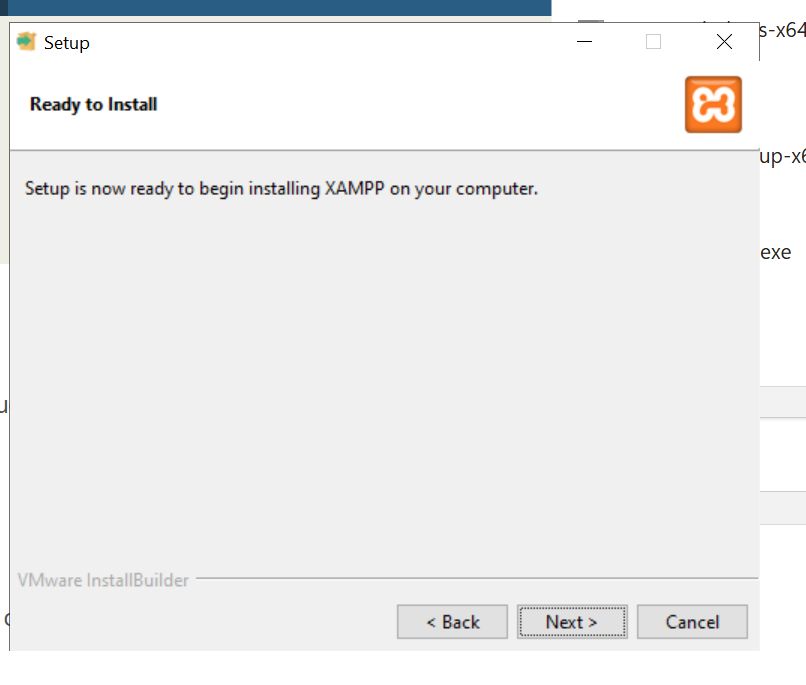
Finished!
You have now successfully installed Xampp on your computer! just press finish it will open Xampp Control Panel
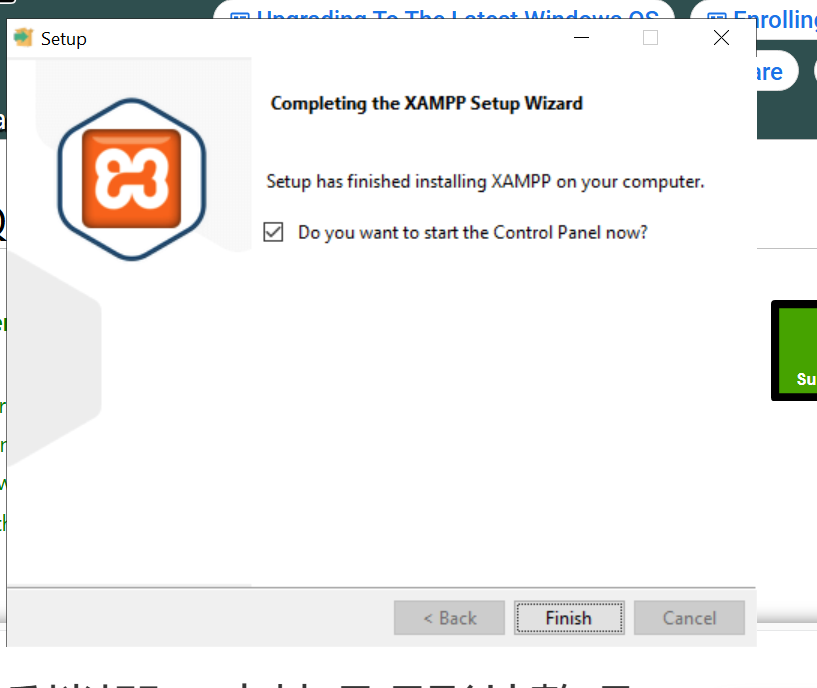
You can now use Xampp to manage your database for many games.
but now you want to know ! how do you start it so you can use it for your database for fivem thats simple !
right click xampp and hit run as administrator!
next you will see your control panel !
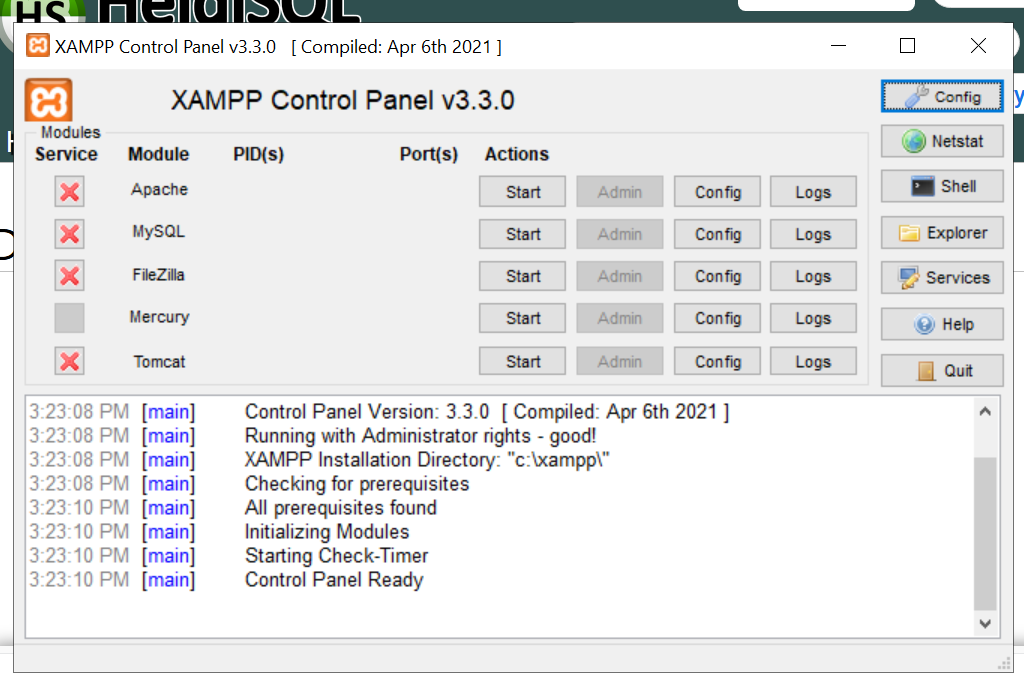
Click the x on Apache and Mysql its gonna ask if you want to install them Click Yes and then Click Start on the MySql and Apache and your ready to go !
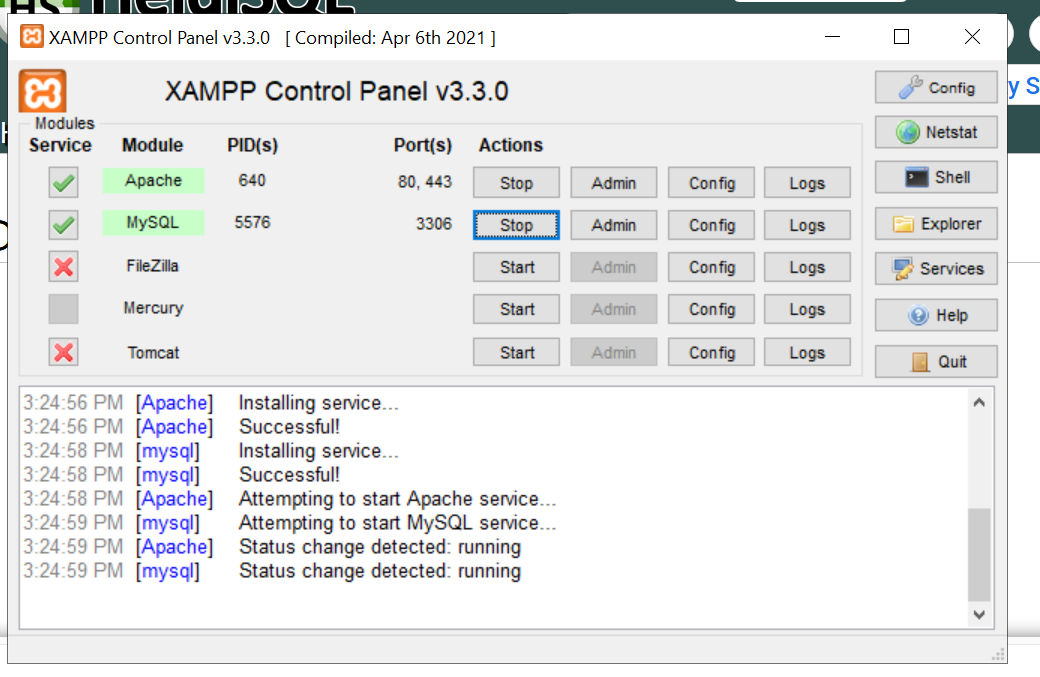
it should look like this when your finished ! you can simply click the x in the top left of your xampp control panel and its ready to go !
If you run into any issues during setup, our support team is here to help.
For assistance, you can:
Join our Discord support server: https://discord.gg/JwnumEWEq6
Or log in to the Client Area - CloudStrikeHosting and open a support ticket.
Whether you have questions about your VPS, need help troubleshooting, or need assistance with your account, we're happy to help get you up and running as quickly as possible.