How to Exclude Your FiveM Server From Windows Defender
This guide will show you how to add your FiveM server folder to Windows Defender exclusions.
⚠️ Important Warning — Use At Your Own Risk
I DO NOT recommend excluding your entire FiveM server from Windows Defender.
The reason is simple:
Yes, excluding your server folder can help with:
Faster server startup times
Faster resource loading
Less antivirus scanning while your server is running
However, there is also a major security risk.
If you install a resource, script, or file that contains malicious code, Windows Defender will not scan that excluded folder and may not detect the threat.
This could potentially compromise:
-
Your FiveM server
-
Your VPS
-
Your database
-
Your personal files
By following this guide, you accept the risk.
We are not responsible for any data loss, server damage, or security issues that may occur from using this setup.
Step 1 — Open Windows Security
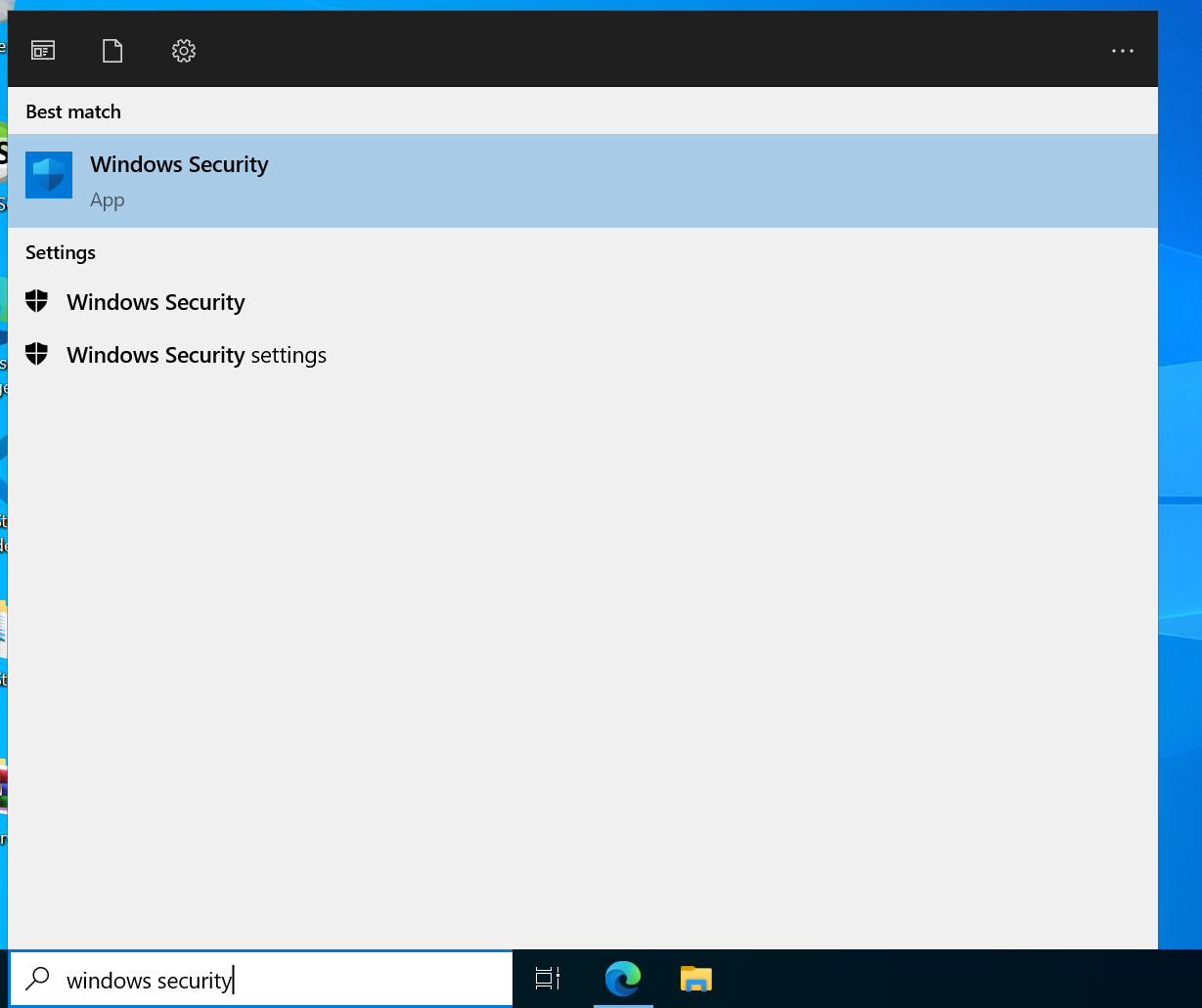
First, go to your Windows search bar at the bottom of your screen.
Search:
Windows Security
Open the Windows Security application.
It should look similar to this:
Step 2 — Open Virus & Threat Protection Settings
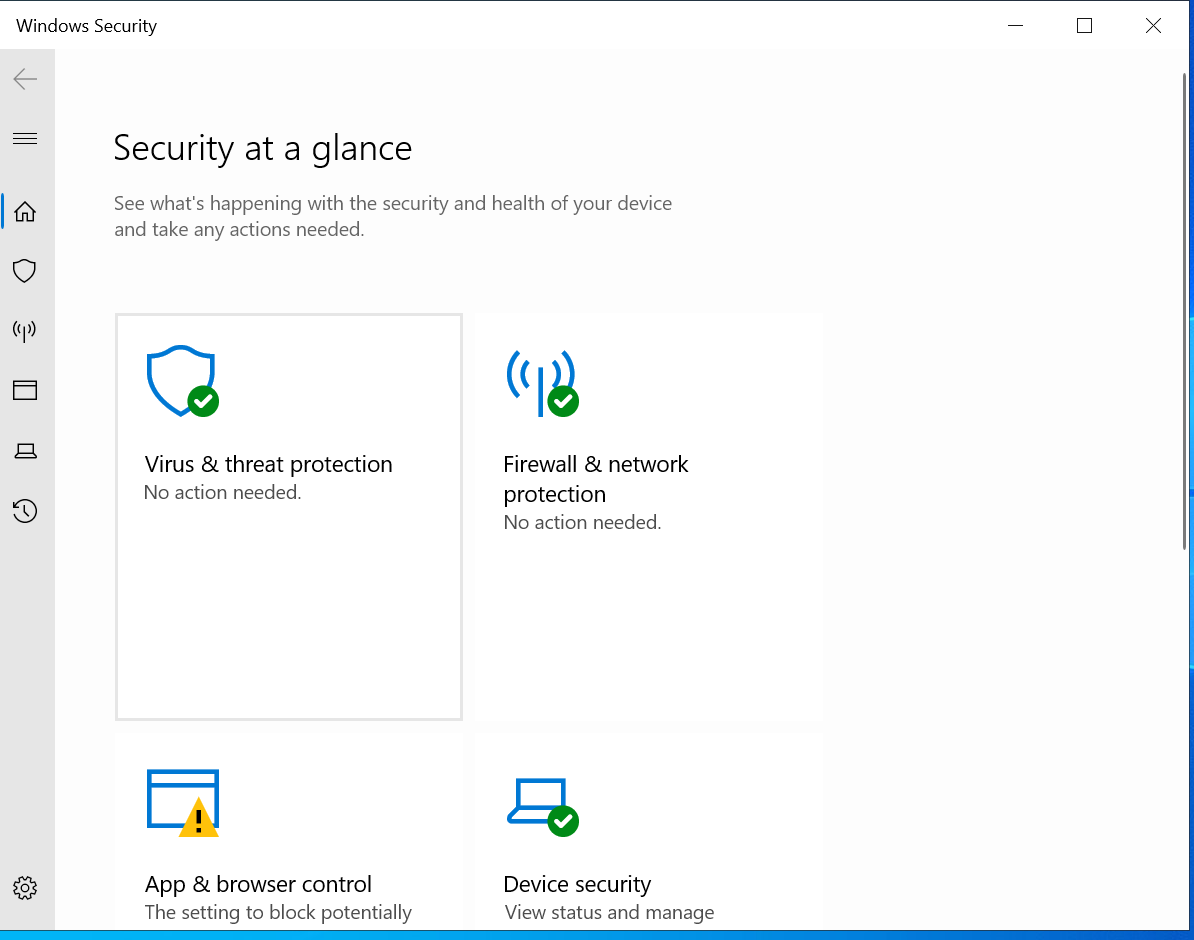
Once Windows Security is open:
-
Click:
Virus & threat protection
-
Scroll down until you find:
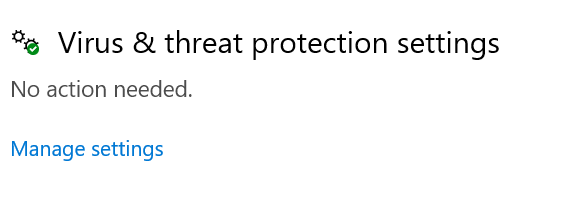
Virus & threat protection settings
-
Click:
Manage settings
Step 3 — Find Exclusions
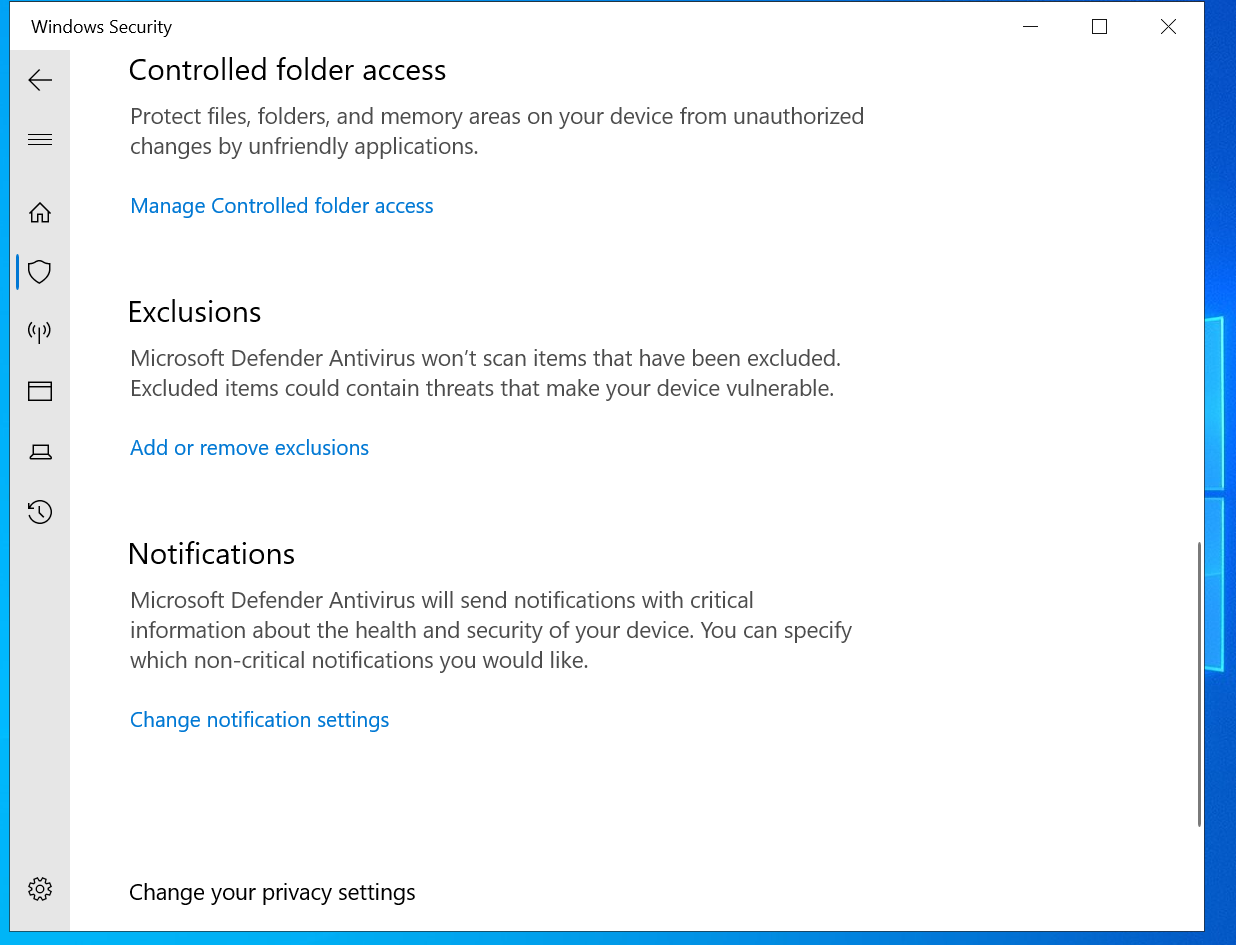
Scroll down until you see:
Exclusions
Click:
Add or remove exclusions
This is where we will add your FiveM server folder.
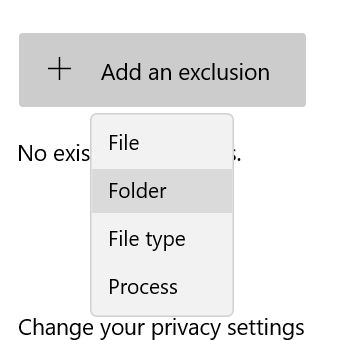
Step 4 — Add Your FiveM Server Folder
Once you are on the exclusions page:
-
Click:
Add an exclusion
A small menu will appear.
-
Select:
Folder
Step 5 — Select Your FiveM Server Folder
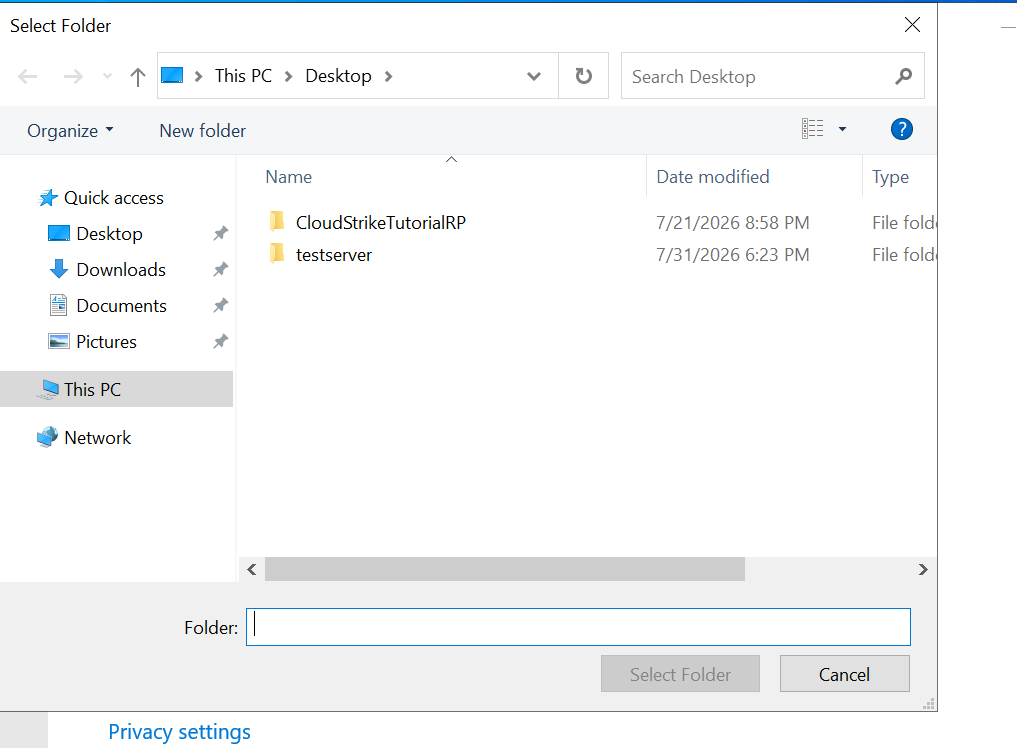
A folder browser will open.
Find the location of your FiveM server.
Example:
C:\FXServer\server-data
or:
C:\Servers\MyFiveMServer
Select your server folder.
Then click:
Select Folder
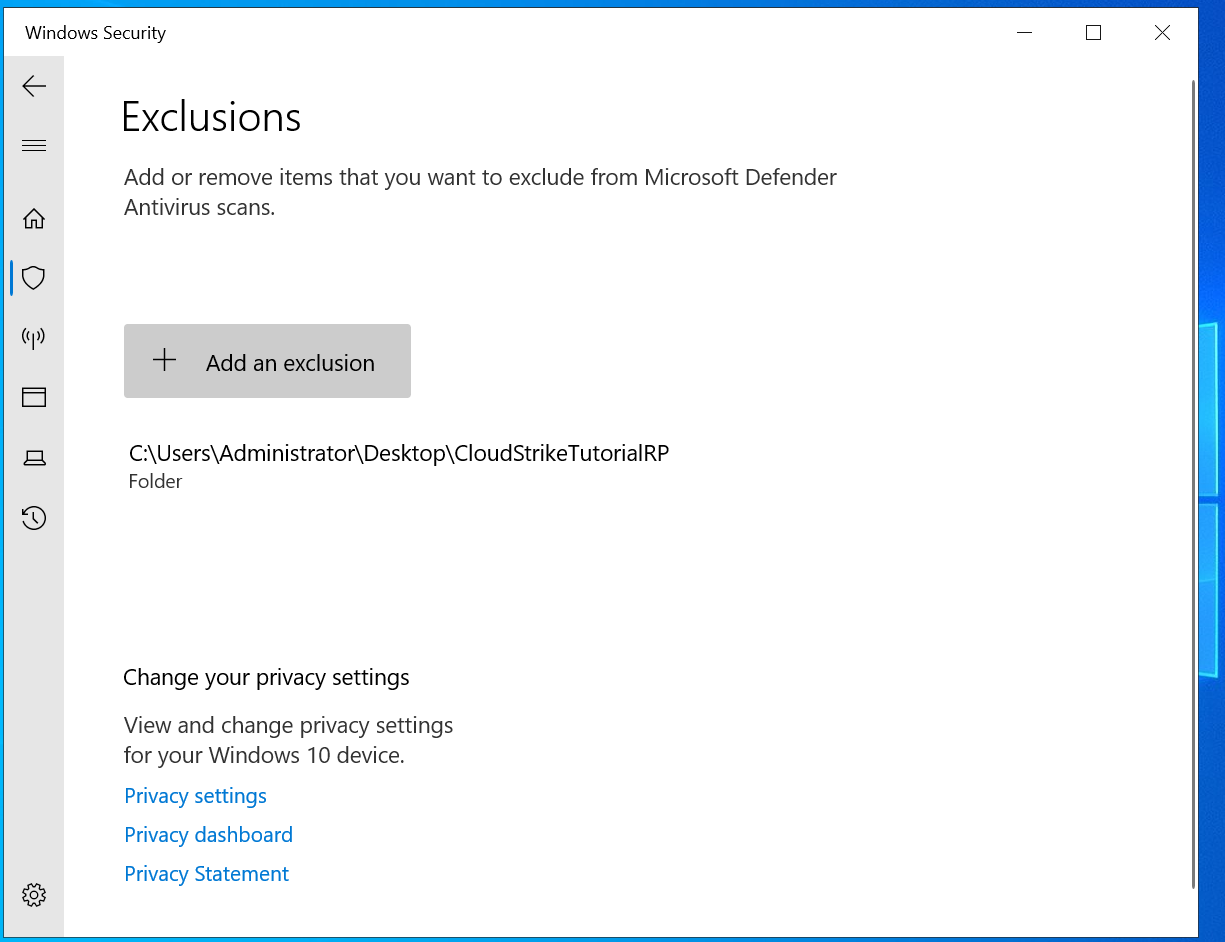
Step 6 — Finished!
Your FiveM server folder is now excluded from Windows Defender.
You should now notice:
Faster server startup times
Less delay while loading resources
Reduced CPU usage during server startup
Important Reminder
Although this can improve performance, remember:
Any scripts, resources, or files placed inside this folder will no longer be scanned by Windows Defender.
Always make sure you download resources from trusted developers and avoid installing unknown files into your server.
Use this feature responsibly.
If you run into any issues during setup, our support team is here to help.
For assistance, you can:
Join our Discord support server: https://discord.gg/JwnumEWEq6
Or log in to the Client Area - CloudStrikeHosting and open a support ticket.
Whether you have questions about your VPS, need help troubleshooting, or need assistance with your account, we're happy to help get you up and running as quickly as possible.